Office Pods for Remote Training: Choose Space for Presenting, Practising and Demonstrating
Choose an office pod for remote training by asking what the person must do on camera, not simply whether the calendar says training. An employee listening and completing a software exercise may need a checked single-person workspace. A trainer presenting slides and operating an application needs a different screen, camera and control arrangement. Two people practising together need a genuine shared work position. A standing demonstration, large object or changing group usually belongs in a larger fixed room or a purpose-built recording space.
The enclosure can solve a repeated space problem only when the real training setup fits and can be reset. It does not supply a learning platform, camera system, professional recording quality or a guaranteed session duration. Start with the activity, equipment, participant positions and transition between sessions; then choose the smallest suitable space.
Separate four jobs that all look like remote training
A remote session can move between listening, screen sharing, controlled practice and showing a physical object. Microsoft’s guidance for presenting and sharing content distinguishes a desktop, a single window, a presentation and a collaborative whiteboard. It also advises closing content and notifications that should not be visible. Those are platform workflows, not MobileX product specifications.
Scroll horizontally to compare all columns on a narrow screen.
| Training task | Space starting point | What must work inside | When another room is better |
|---|---|---|---|
| One employee listens, takes notes and completes a software exercise | Open workstation when speaking is unnecessary; otherwise a checked single-person office pod | Laptop, notes and input devices usable together; screen visible without an awkward camera position; headphones or approved audio path; the employee can ask questions without disturbing nearby work. | Use the normal workstation when the module is silent, the desk already supports the task and an enclosure would add no useful separation. |
| One trainer presents slides, shares software or teaches from a seated position | Single-person pod only after the full presenter setup is trialled | Presenter view, shared-content controls, camera framing, notes, keyboard and any second screen fit without repeated rearrangement. | Use a meeting room or recording room when a producer joins, several displays are needed, the trainer moves around or the session requires controlled recording conditions. |
| Two people practise a process or review the same device and materials | Two-person meeting booth as a starting route | Both users can see the task, reach the shared item, appear in the required camera view and exchange control without blocking the entrance or each other. | Use a fixed room when equipment, papers or movement consume the shared work area, or when another facilitator must join physically. |
| Trainer demonstrates a physical product, tool or standing procedure | Larger checked space, often an existing training room or purpose-built studio | Object, presenter and camera each have a defined position; the remote audience can see the relevant action; cables, stands and materials remain outside the movement path. | Use the existing larger room when the object, camera distance, lighting stands, safety zone or participant group cannot be supported by the proposed booth layout. |
A learner workspace and a presenter workspace are not the same
A learner may spend most of the session watching, typing and asking occasional questions. The purchasing test is whether the person can see the training content while using the application, workbook or notes required by the course. If the task is silent and the existing desk already provides a good setup, an open workstation may be the better answer. A pod earns its place when spoken participation or nearby distraction creates a repeated problem that the open position does not solve.
The trainer has to manage more at once: shared content, participant video, chat or questions, presenter notes and the application or object being demonstrated. Microsoft’s screen-sharing overview describes sharing a screen, window, presentation or whiteboard and notes that screen sharing is used for training and demonstrations. That workflow changes how much visible screen area and control space the presenter needs. It does not prove that a particular screen, camera or software license is included with an office pod.
Before approving a single-person configuration for a trainer, run the real sequence: open the participant view, share the required content, switch to the demonstrated application, answer a question, take back control and stop sharing. If the trainer repeatedly hides the audience, moves equipment or reaches across the camera, compare a different furniture arrangement or a larger room instead of assuming the enclosure label solves the workflow.
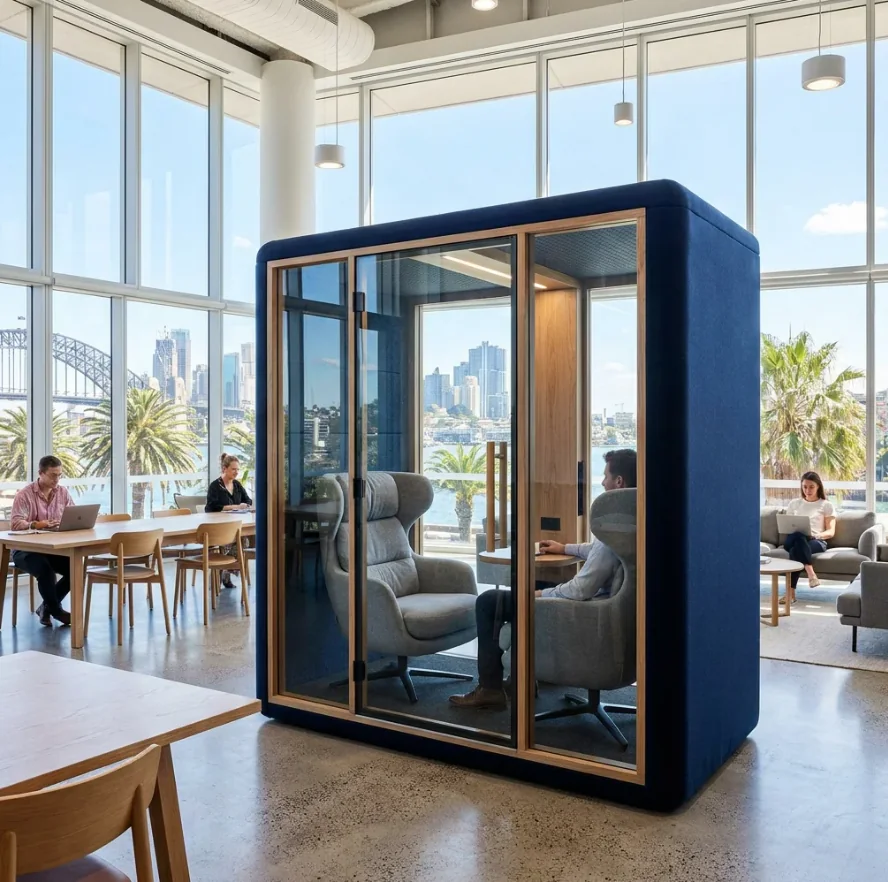
Treat screen demonstration and physical demonstration differently
A software demonstration can usually keep the trainer seated while the remote audience sees a shared window or screen. The physical room must support the trainer’s own view of participants and controls, but the demonstrated content is digital. A physical demonstration adds an object, a camera view of that object and often hand movement or standing space.
Microsoft’s content-from-camera guidance distinguishes whiteboards, documents and objects in the room, and explicitly includes a business product demonstration as an example. It calls for a laptop or desktop and an appropriate built-in, USB or document camera, depending on the task. This establishes that the object and capture method are separate planning inputs; it does not establish that MobileX supplies the camera, document stand, screen or demonstration surface.
Place the actual demonstration object where it will be used and inspect the remote view before choosing a booth. Confirm that the camera can see the important action without blocking the presenter’s hands, face, controls or exit. Small desk objects may work in a checked seated layout. A product that must be rotated, opened, connected to test equipment or viewed from several angles may require more surface and camera distance than a standard office pod can provide.
Do not infer camera suitability from an interior dimension sequence or a product photograph. Lens angle, mounting position, object size, lighting and presenter movement all affect the frame. If the training depends on consistent production quality, multiple cameras, controlled sound or recorded deliverables, evaluate a dedicated recording or demonstration room rather than describing a normal office pod as a studio.
Two-person practice needs a shared task, not just two seats
Paired practice may involve one person demonstrating while the other follows, two people alternating control of the same application, or a facilitator observing a learner’s procedure. Each arrangement creates a different sightline and work-surface question. A two-seat image does not show whether both users can see the screen, reach the device or remain in frame.
Use the exact practice material during a trial. Put both laptops, the shared device, paper instructions and permitted personal items in their intended positions. Ask each person to complete the handover: stop, pass control, change seats only if the workflow requires it, and reset the task for the next learner. If the activity needs a third person to coach in the room, compare a larger meeting booth or the existing training room rather than treating two nominal seats as expandable capacity.
The two-person and four-person meeting booth guide covers participant patterns and general layout checks. This training guide adds the shared task, control transfer, camera view and practice reset that a simple headcount does not answer.
Plan the camera view before choosing the furniture
Camera framing is part of the trial, not a promise attached to the pod. The University of Michigan’s online-teaching guidance discusses microphone placement, lighting, webcam position and testing the setup before a recording or video session. It also warns against bright backlighting and recommends reviewing a sample. These are general preparation principles from the named university, not tested characteristics of a MobileX enclosure.
Check the trainer’s normal seated or standing position, not a posed still image. The remote view should include what the course requires without exposing unrelated screens, documents or passing colleagues. Glazing, room orientation and the camera angle affect what people outside and remote participants can see. Visual privacy, speech reduction, platform access and recording governance remain separate questions.
If a trainer needs to look at a second display while speaking, test where that display sits relative to the camera. If the learner must show their screen or physical work, test the return path as well. A layout that works for a one-way presentation may fail when control changes hands.
Observe consecutive sessions without inventing an occupancy limit
Remote training is often scheduled in blocks, but the available evidence does not establish a universal continuous-use duration for a MobileX model. Instead of publishing an unsupported time limit, observe representative use with the proposed configuration. Include the actual speaking level, display brightness, device load, seating position and normal ventilation setting.
Ask users to report concrete observations: whether controls remain reachable, whether the screen or notes are difficult to view, whether the room feels suitable for the intended session and whether the next user receives a ready workspace. These observations inform the configuration trial; they are not acoustic, ventilation, ergonomic or learning-performance certifications.
Between sessions, stop screen sharing, close the meeting, sign out of shared accounts, remove training materials and return agreed accessories. The operator should define who reports a device or room fault and how an unavailable booth is marked. Do not record employee names, course results or screen content merely to measure room use.
Use model information as a screening input
For MobileX standard starting points, the internal dimensions are MP1 880 x 920 x 2080 mm, MP1+ 1120 x 1080 x 2080 mm, MP2 1880 x 920 x 2080 mm and MP3 1880 x 1520 x 2080 mm. These are internal dimensions, separate from external dimensions, and are not net doorway sizes, furniture working areas, camera distances, equipment clearances or accessibility clearances.
A learner or trainer working alone can start with the MP1 and MP1+ office phone booth route. A checked pair or small group can start with the MP2 and MP3 meeting booth route. The calls and focused desk-work guide helps separate listening, typing and video tasks, while the video-call guide provides the detailed camera, audio, lighting and connection trial.
All four model families support custom sizes subject to project review. Custom sizing does not establish that every camera position, equipment layout, standing demonstration, accessibility condition or special performance request is feasible. Use the custom modular pod route when a documented training task cannot be served by an appropriate standard starting point.
Know when the existing space should win
Keep an employee at the existing workstation when the module is silent, the desk already supports the required application and spoken participation will not disturb nearby work. Use an existing meeting room when several local participants join, a facilitator must move between people, materials need to remain laid out or the session depends on equipment already installed there.
Use a professional recording or demonstration space when the deliverable requires controlled production, multiple camera views, specialist lighting, large physical products or repeatable recorded output. An office pod may still support preparation or individual follow-up, but it should not be sold as a substitute for a studio without evidence from the complete setup.
This boundary is commercially useful: the buyer can reserve meeting rooms and studios for tasks that genuinely need them while considering pods for repeated individual or paired sessions. The decision should add a suitable space to the existing room mix, not force every training format into one enclosure.
Illustrative scenario: split a software course from a hardware demonstration
Illustrative scenario
A hypothetical customer-training team runs two recurring sessions. In the morning, one trainer demonstrates software by sharing a window, watches participant questions and switches control to a learner. In the afternoon, the trainer stands beside a tabletop product, connects cables and shows controls from two angles.
The team trials the software session in a single-person office pod using the real laptop, presenter view and notes. It keeps the hardware demonstration in an existing training room because the product, camera distance, lighting and standing movement need more space. A two-person meeting booth is considered only for coached software practice where both users and the shared device fit the checked layout.
This is an illustrative purchasing method, not a MobileX customer project, training deployment, measured fit, learning result or promise that cameras, displays, furniture and demonstration equipment are included.
Send a training-task brief with the quotation request
A useful enquiry identifies the training job and physical setup without turning unknown equipment into a product promise:
- Users: learner alone, trainer alone, paired practice, local group or remote audience.
- Activity: listening, software practice, screen presentation, document teaching, physical demonstration or another defined task.
- Items inside: actual laptops, displays, cameras, stands, documents, products and controls, with dimensions supplied by the buyer where relevant.
- Views: what the trainer, learner, remote audience and people outside the enclosure should or should not see.
- Session pattern: representative duration, consecutive use, transition time and responsibility for reset or fault reporting.
- Existing spaces: workstations, meeting rooms and recording facilities that remain available for tasks better suited to them.
- Supply boundary: proposed booth, furniture and interfaces in the quotation versus buyer-supplied AV, software and site work.
For individual remote work, compare the office phone booth range. For paired or small-group practice, use the meeting booth buying page. When the documented activity needs another size or arrangement, use the custom project route or send MobileX the task, equipment list and marked plan.
Choose the space around the action
Remote training does not have one correct room. A listener, a seated software presenter, a coached pair and a standing product demonstrator create different demands on the work surface, camera, shared view and movement area. A pod is useful when its checked layout supports the complete action and can be handed to the next user without friction.
Start with the smallest representative session, trial the real equipment and preserve larger rooms for tasks that need their space. Record what MobileX supplies, what the buyer or AV team supplies and what remains to be tested. That produces a clearer purchasing decision than treating every video-enabled training activity as the same meeting.