Office Pods for Calls or Focused Desk Work: Match the Setup to the Session
Choose an office pod around the work people will actually do inside it. A place for a short phone conversation needs a different setup from a video meeting with screen sharing or a session of typing, reading and document comparison. Start with the task, equipment and intended pattern of use, then compare the complete furniture, lighting, power and ventilation configuration.
A quieter enclosure is only part of the decision. A user must also be able to see the screen, hear the conversation, operate the equipment and work comfortably. Instead of asking whether a pod is simply "good for focus," describe a representative session and ask the supplier to show how the proposed setup supports it.
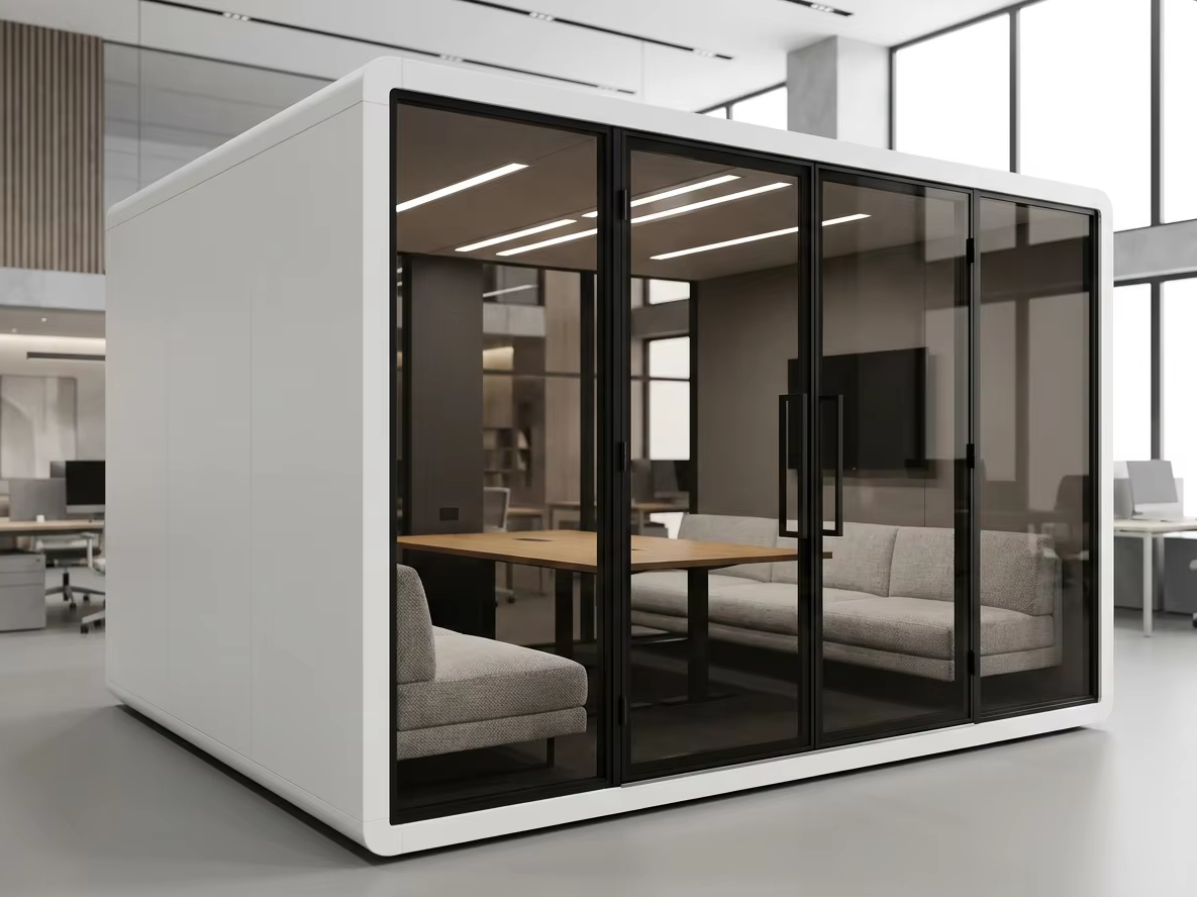
Start with the session, not a product label
An IT buyer, facilities team or furniture dealer may be comparing the same pod for very different reasons. A sales team wants a place to take calls without disturbing colleagues. An analyst needs to work between documents on a screen. A distributed team needs a camera view and clear two-way audio. Those uses should not be treated as interchangeable.
Scroll horizontally to compare all columns on a narrow screen.
| Intended task | Configuration priority | Information to confirm |
|---|---|---|
| Short phone conversation | Convenient entry, a practical place for notes or a device, and speech privacy | Standing or seated use; handset or headset; charging needs; what nearby colleagues can hear with the door closed |
| Video meeting with a laptop | Screen and camera position, face lighting, intelligible audio and reliable connections | Laptop and headset models; whether a second display is used; camera view from the actual seat; required power and network connection |
| Focused typing, reading or document comparison | A workable desk, suitable chair, screen placement and usable controls | Keyboard and mouse arrangement; number of displays; documents or tools on the desk; expected users and pattern of use |
| A session that moves between calls and desk work | A setup that changes tasks without repeated unplugging or furniture rearrangement | How the user switches activities; what stays connected; where the laptop, notes and headset go while the main screen is in use |
These are purchasing comparisons, not maximum occupancy times or certified use categories. Describe how often the pod will be used, how sessions vary and who will use it. That gives the supplier a more useful starting point than a label such as "executive" or "deep work."
A call position is not automatically a desk workstation
For a phone call, the user may need little more than a comfortable position, a headset and somewhere to make notes. Once the task becomes typing or sustained screen work, the relationship between the chair, work surface, keyboard and display becomes central.
A shelf that supports a phone may not accommodate a laptop, separate keyboard, mouse and documents together. Likewise, seating that feels appropriate for a conversation may not place someone well for keyboard work at the proposed table. Ask to see the complete combination rather than approving the pod and choosing furniture afterwards.
For regular laptop-based desk work, consider how the screen can be positioned independently of the keyboard. HSE's display-screen posture guidance discusses separate input devices and screen arrangements for prolonged laptop use. It is UK workplace guidance, not a certification of a particular office pod.
Try the actual work: open the documents, use the mouse, take a note and reach the controls. If an adjustment solves the problem, record the required furniture or accessory. If the proposed furniture cannot be arranged usefully inside the pod, compare a different configuration before assuming that a more expensive finish will help.
For the physical movement and furniture measurements behind that decision, use the separate furniture working-envelope guide. This article focuses on what the user needs to do, rather than prescribing internal clearances.
For video calls, evaluate the view and the conversation
Check the camera image with the laptop or camera in its intended position and the user sitting normally. Can the person read shared content without leaning out of frame? Is the screen behind the camera, beside it or much lower down? Does the chosen arrangement make it awkward to alternate between looking at colleagues and working on a document?
Then evaluate the call from both ends. Ask a remote participant to describe the speech they hear while the pod user talks, types and uses the normal fan setting. Listen for distracting background sound and changes when the microphone or headset position changes. A quiet impression inside the pod and clear sound at the far end of a call are separate observations.
Speech isolation, the sound within the enclosure and the behaviour of the conferencing equipment are different parts of the purchase. Request applicable acoustic evidence for the proposed pod where speech privacy matters. Evaluate the call equipment separately; do not turn a demonstration into an unsupported acoustic rating or a promise that conversation cannot be heard outside.
The video-call camera, audio and lighting guide covers a more detailed trial call. Use it when IT or an AV integrator needs to assess equipment; it does not replace choosing an appropriate desk-work setup.
Lighting, power and ventilation must work with the task
Light the task as well as the face
Look at the actual display, documents and camera view with the proposed lights switched on. A bright ceiling does not tell you whether text on the screen is easy to read. Check reflections from glazing and the screen, shadows over the keyboard, and whether the user's face becomes difficult to see against a bright background.
Compare the intended arrangement with the surrounding office lighting. Record which light or screen adjustment improves the task. For a mixed-use pod, the useful setting for a call may differ from the one preferred for document work; ask which controls the user can operate and which options require a different specification.
List what needs to connect
List the laptop charger, monitor, docking device and any separately powered call equipment. Confirm the proposed socket type, location, connection method and applicable electrical information with the supplier and the project's responsible installer. A visible socket in a reference image does not establish the supplied electrical specification.
Put equipment names and installation information into the design brief and approved drawings. That guide covers interfaces and supply responsibility; here the aim is to identify what the session requires before those interfaces are agreed.
Ask how air reaches the occupied space
Confirm the intended occupancy, operating settings and maintenance access. Ask where the pod takes air from and where it discharges, and have the facilities team consider the ventilation of the surrounding room as well as the pod configuration.
HSE's workplace ventilation guidance distinguishes moving existing air from bringing in fresh air and relates ventilation needs to occupancy and activity. It does not supply a MobileX performance rating. Ask for information applicable to the proposed installation rather than judging ventilation from a fan brand or an audible breeze.
During a representative session, record comfort and background sound with the intended equipment running. Those observations help identify questions for the supplier or facilities team; measurements and technical assessment are separate where the project requires them.
Buy a call space, a laptop space or a desk-work setup?
Choose a compact call space when people leave their main workstation to speak, then return to it. Choose a laptop-ready setup when the same session includes video, notes and screen sharing. For sustained typing or document work, choose the furniture and equipment layout first, then the enclosure that can accommodate it. More floor area is useful only when it makes the actual work arrangement better; it is not, by itself, evidence of more comfortable furniture or better sound isolation.
Start with the direction of the disturbance
If colleagues are disturbed by your calls, the purchase needs to address your voice leaving the enclosure. If you struggle to concentrate because of surrounding speech, the question is what you hear at the occupied work position. A headset may change what reaches your ears or the remote caller, but it does not enclose your own speaking voice. A pod chosen for quiet reading also needs a usable desk if the task becomes writing, spreadsheets or document comparison. State both needs when the user will alternate between silent work and calls.
Where the extra space and money can help
As a MobileX model reference, MP1 has listed internal dimensions of 880 × 920 × 2080 mm, while MP1+ has 1120 × 1080 × 2080 mm. These are enclosure dimensions, not unobstructed movement space after furniture and equipment are installed. Both listed single-person packages include a desk and seat; an adjustable task chair, extra monitor or alternative desktop is not established merely by that inclusion.
The dated 19 July 2026 EXW reference prices are USD 1,380 for MP1 and USD 1,650 for MP1+, a USD 270 difference. These are historical product references, not current delivered offers. For a short-call satellite space, MP1 can be the more economical starting point if its supplied arrangement fits the user and device. MP1+ is worth comparing when the extra internal width and depth make a laptop, notes and seated working position easier to arrange. Neither the price difference nor the larger envelope proves long-session suitability: compare the proposed desk, seat and occupied layout.
For a desk-work purchase, a larger enclosure with an unsuitable fixed furniture arrangement can be a worse choice than a smaller configuration that fits the required task. OSHA’s computer-workstation guidance treats leg clearance and usable placement of the computer and accessories as part of desk selection. It also advises changing working position during the day. Use those principles to evaluate the package, rather than treating a door and chair as a complete workstation.
Compare two complete work positions, not two shells
Put the same task on both quotations: for example, one seated person using a laptop, separate keyboard and mouse, with room to take notes. This is a planning example, not a confirmed MobileX equipment bundle. List the supplied desk and seat separately from any replacement furniture, display support, power connections and equipment supplied by IT. Add freight, unloading, access and assembly for the actual destination on the same basis. Do not add a furniture allowance twice when the chosen package already includes it.
If people would still have to leave the pod whenever they need their normal keyboard, documents or second screen, budget it as a supplementary call space, not as a replacement desk. If the complete desk arrangement cannot fit the proposed interior, move to another layout or a project-specific design before paying for decorative upgrades. The existing model range and custom-layout routes below serve these different purchases.
Compare configurations by doing your own work
Bring a representative device and a small piece of real work to a demonstration. Use non-confidential sample material if documents or calls would otherwise expose business information. Repeat the same activity across the configurations being considered so that a favourable impression is not just the result of a different task.
For example, a buyer might compare a laptop-only arrangement with a setup using a separate keyboard and display. Open a document, make edits, join a call, share the document and return to typing. Note what has to be moved or reconnected and whether that interrupts the intended workflow. This is an illustrative comparison, not a report of a MobileX customer test.
Involve the people responsible for different outcomes: a representative user for the task, IT or AV staff for devices and calls, and facilities staff for the operating environment. The UK HSE workstation checklist is a useful example of assessing equipment, furniture and the work environment together. Use the assessment process applicable to your location and workforce.
Keep the result specific: "the display blocks the camera at the proposed seat position" is more actionable than "the pod feels small." Ask who will address the issue and what needs to be shown again. This is a task-based selection exercise, not a substitute for a required workplace assessment.
Adjust the setup, choose another model or discuss custom work?
Start with a configuration adjustment when the chosen enclosure can support the task but the selected furniture, device position or controls are unsuitable. Ask the supplier to confirm the proposed change and its supply scope.
Compare another model when the complete task cannot be carried out usefully within the proposed arrangement, when the number of participants changes, or when the setup requires more equipment than it can reasonably accommodate. The office phone booth and pod range is the commercial starting point for that comparison; no single model is assigned a universal working duration here.
Discuss a custom modular pod configuration when the task has requirements that available configurations do not resolve. Explain the requirement and ask for feasibility, rather than assuming that every component can be repositioned. Site footprint, height and location are addressed separately in the site-fit comparison.
For a useful enquiry, send the intended tasks, number of users, equipment list, preferred furniture arrangement, pattern of use, project location and quantity. Identify which items you expect the factory to supply and which your team will provide. Ask MobileX POD to review the configuration, or send the details to MobileX, with that information before comparing quotations.